Light Mode Theme Using Tampermonkey
If you’d like to set up your own light mode theme for browsing Unvale, this unofficial user script is for you! This page covers a step by step tutorial on how to install a browser extension and script that will work on most browsers to add light mode to Unvale.

If you’d like to set up your own light mode theme for browsing Unvale, this unofficial user script is for you! This page covers a step by step tutorial on how to install a browser extension and script that will work on most browsers to add light mode to Unvale.
This tutorial uses a browser extension called Tampermonkey, which makes it possible to use client side scripts to change the appearance of Unvale, without affecting anyone else's experience while using the site.
Tampermonkey is a well known extension but is not associated with Unvale. It’s important to make sure you are cautious when installing user scripts, and to never install anything from strangers without ensuring you know what they do and where they’re from!
Keywords:
Browser: A web browser is how you access the internet. Most people use Chrome, but there’s lots of different ones.
Extension: A piece of software made to help you customize your browser.
Script: A piece of code made to modify a website's appearance.
Client: Your phone, tablet or computer is a ‘client’ accessing the Unvale website.
Client side script: A piece of code that uses an extension to operate in your device’s browser.
Supported browsers:
- Chrome
- Microsoft Edge
- Firefox
- Safari
- Opera
Installing:
- Install Tampermonkey
- https://www.tampermonkey.net/
- On the Tampermonkey website pick your browser and click ‘Get from Store’ to install Tampermonkey.
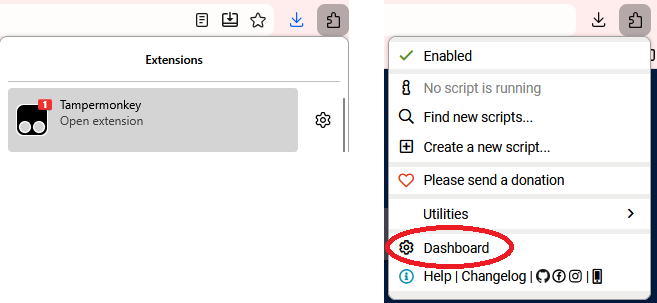
- Navigate to the Tampermonkey Dashboard
- You can access the dashboard by clicking the extensions button on your toolbar, then the Tampermonkey icon, and finally selecting ‘Dashboard’.
- On most browsers the extension button looks like a puzzle piece icon!
- On Opera the extensions button is a cube.
- Click the new script button
- This will open a new script with a basic template.

- Erase the contents of the template script
- Copy the userscript from below and paste it into the empty template
- Click ‘File’ and ‘Save’
- This will save the light mode script to your Tampermonkey, and you’re done!
FAQ:
As this script is unofficial, staff can’t provide troubleshooting via support tickets. If something isn’t working, double check the points below or check the official Tampermonkey FAQ: https://www.tampermonkey.net/faq.php?locale=en
To use this script on mobile browser:
- Install Firefox and follow the tutorial above.
- To access your extensions on Firefox mobile, click the three dots in the top right corner.
If the script did not work:
- Check that the script was copied exactly
- Enable developer mode in Tampermonkey
- Enable ‘Allow user scripts’ in Tampermonkey
To disable light mode:
- Click the extensions button (Puzzle piece/cube icon) in your toolbar
- Click the Tampermonkey icon
- Toggle ‘Unvale — force light mode (unofficial)’ to OFF
As this script does not work in the app, you may like to create a browser shortcut that will act like an Unvale app on your homepage. Here’s how!